Network Printing Tips: How to Improve Speed, Stability, and Efficiency
Published on: January 12, 2025 • Category: Networking
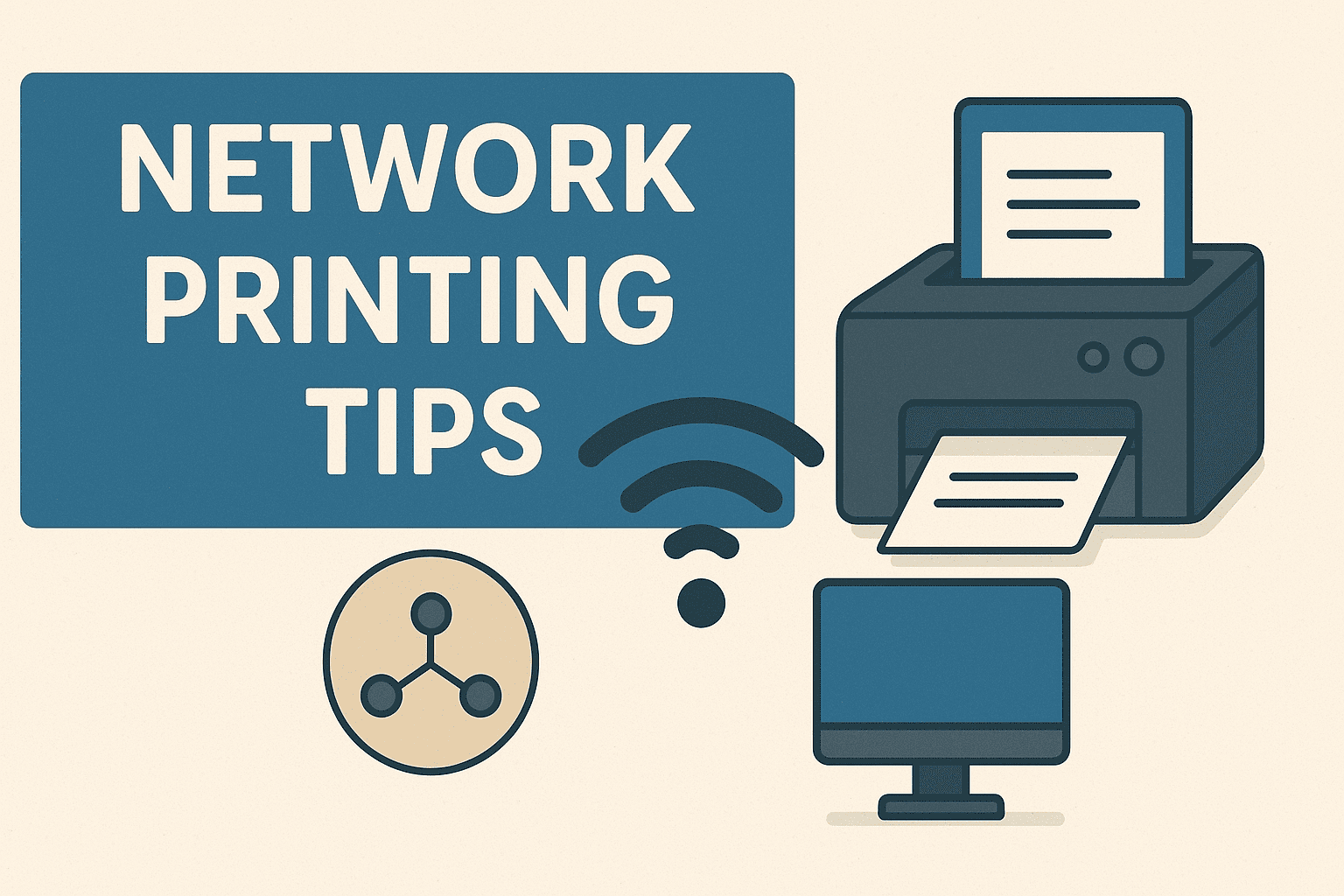
Network printing makes it easy for multiple users to print from different devices without physically connecting their systems to the printer. Whether in a home office, small business, or corporate setup, network printing offers convenience, flexibility, and time-saving benefits. However, issues like slow printing, frequent disconnections, or printer offline errors can disrupt your workflow. This guide shares practical and easy-to-apply network printing tips to help you maintain smooth, fast, and reliable printing performance across all your devices.
What Is Network Printing?
Network printing allows a printer to be shared across multiple devices through Wi-Fi or a wired network connection. Instead of plugging in cables for every device, users can print wirelessly from laptops, desktops, tablets, or smartphones. This is especially helpful for offices or homes where multiple users share the same printer.
1. Ensure a Strong and Stable Wi-Fi Signal
A weak Wi-Fi signal is one of the most common reasons for slow or interrupted network printing.
Tips:
- Place the printer closer to the router.
- Avoid thick walls or metal objects between devices.
- Use a dual-band router and connect the printer to the 2.4 GHz band for better coverage.
2. Use a Wired Connection for Heavy Printing Tasks
For offices that print large files regularly, a wired Ethernet connection offers faster and more stable performance than Wi-Fi. If your printer and router support Ethernet, consider using a LAN cable for improved reliability.
3. Assign a Static IP Address to the Printer
The printer may disconnect if the router assigns it a new IP address automatically. Fix: Set a static IP address for the printer using the router settings or the printer’s built-in control panel. This ensures consistent connectivity and fewer offline errors.
4. Update Printer Firmware and Drivers Regularly
Outdated firmware or drivers may cause compatibility issues, slow response times, or random disconnections. Tip: Check the manufacturer’s website or printer app for regular updates to ensure smooth performance.
5. Keep Your Router and Printer Close During Setup
During initial configuration, ensure the printer is near the router for stronger signal detection. After setup, you can move it to a convenient location while staying within the network range.
6. Avoid Network Overload
Too many devices connected to the same Wi-Fi network may slow down printing. Tip: Disconnect unused devices, or use a dual-band router to distribute traffic more evenly. For offices, consider upgrading to a higher-capacity router.
7. Enable Quality of Service (QoS) on Your Router
Many routers include a QoS feature that prioritizes certain types of traffic. Tip: Give priority to printing tasks or the printer’s IP address to improve stability and speed.
8. Use the Printer’s Official App or Utility
Printer brands offer mobile apps or drivers utilities that simplify wireless setup, troubleshooting, and maintenance. These tools help detect connection problems, update firmware, and manage print jobs more efficiently.
9. Check Firewall or Security drivers Settings
Sometimes, firewalls or antivirus programs may block communication between your device and the printer. Ensure your printer’s IP address or drivers is allowed under the exception list to prevent connection failures.
10. Restart Devices Regularly
Temporary system glitches may slow down network printing. Restarting the printer, router, and computer clears cache, resets connections, and solves many minor issues instantly.
11. Place the Printer in an Open and Central Location
Avoid placing the printer inside closed cabinets or tight corners. An open, central placement improves Wi-Fi coverage and minimizes interference from other electronic devices.
12. Monitor Network Usage and Bandwidth
If your network supports monitoring, check which devices consume the most bandwidth. This helps you diagnose sudden slowdowns related to network congestion.
Best Practices for Efficient Network Printing
- Keep your printer firmware updated
- Use a strong, stable Wi-Fi or Ethernet connection
- Assign a static IP address
- Maintain proper distance from the router
- Restart devices periodically
- Avoid network overload by limiting unnecessary devices
- Ensure correct firewall permissions
These practices ensure faster and smoother printing, especially in shared environments.
Final Thoughts
Network printing offers convenience, speed, and flexibility, but it works best when the connection is stable and devices are properly configured. By following the tips above, you can reduce printing delays, avoid frequent disconnects, and maintain consistent performance across all devices. Whether at home or in the office, a well-optimized printing network supports better productivity and a smoother workflow every day.