Common Printer Error Codes Explained: What They Mean and How to Fix Them
Published on: January 10, 2025 • Category: Troubleshooting
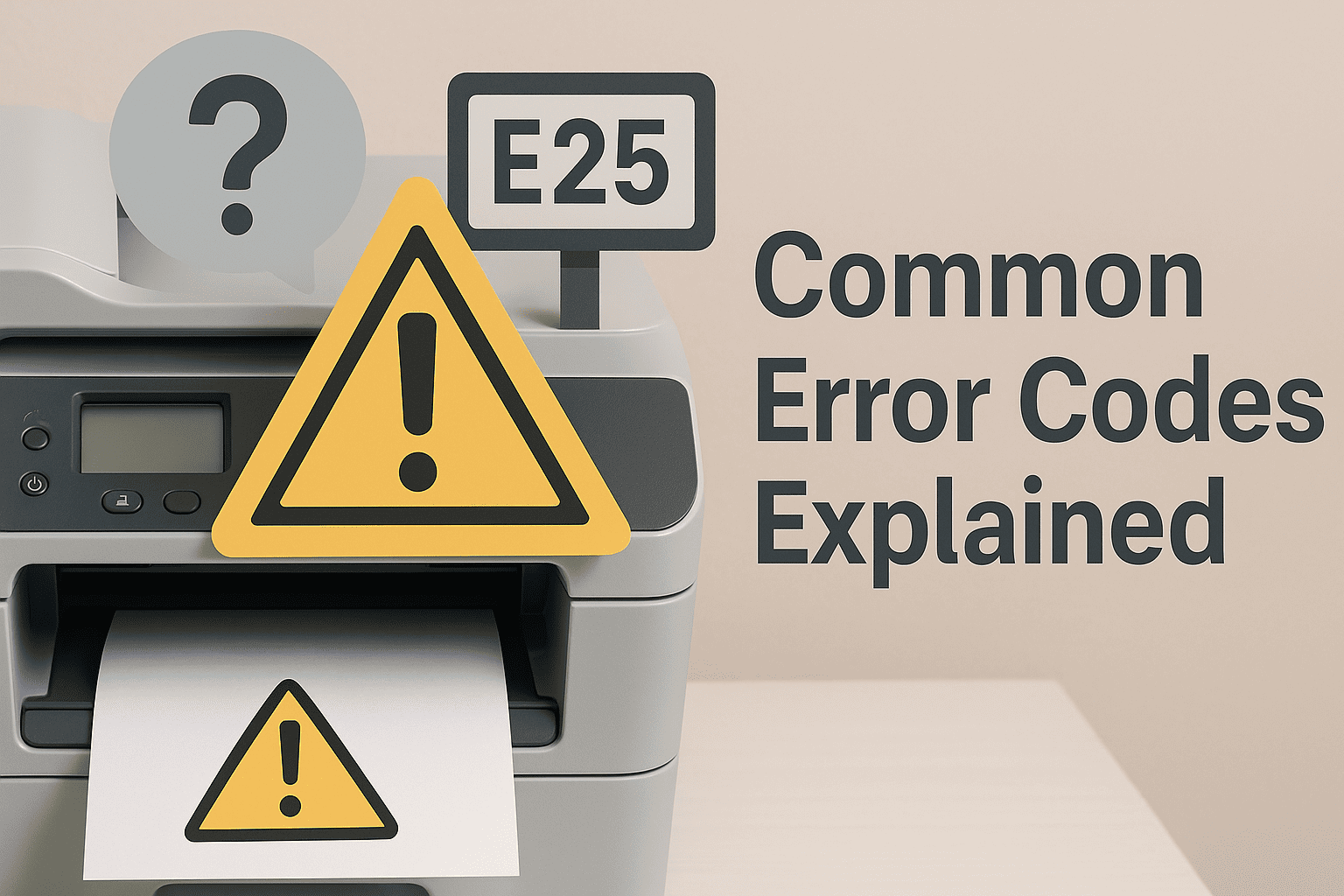
Modern printers are designed to make everyday printing simple and reliable. However, like any electronic device, they may occasionally display error codes that interrupt your work. These messages can look confusing, but most of them point to common and easily fixable issues. This guide explains the most frequent printer error codes, what they mean, and the steps you can take to resolve them quickly and safely.
Why Do Printers Show Error Codes?
Printer error codes appear when the device detects a problem that affects printing. These issues may relate to paper handling, toner or ink levels, network connectivity, internal hardware sensors, or temporary drivers glitches. Understanding the meaning behind each code can help you fix the problem faster and prevent future interruptions.
1. Error Code E1 — Paper Feed Issue
This code usually appears when the printer cannot pull paper from the tray. It may be caused by misaligned sheets, low-quality paper, or an overloaded tray. How to fix: Remove the stack, align it neatly, check the paper guides, and ensure the tray is not overfilled. Use clean and dry sheets for recommended approach.
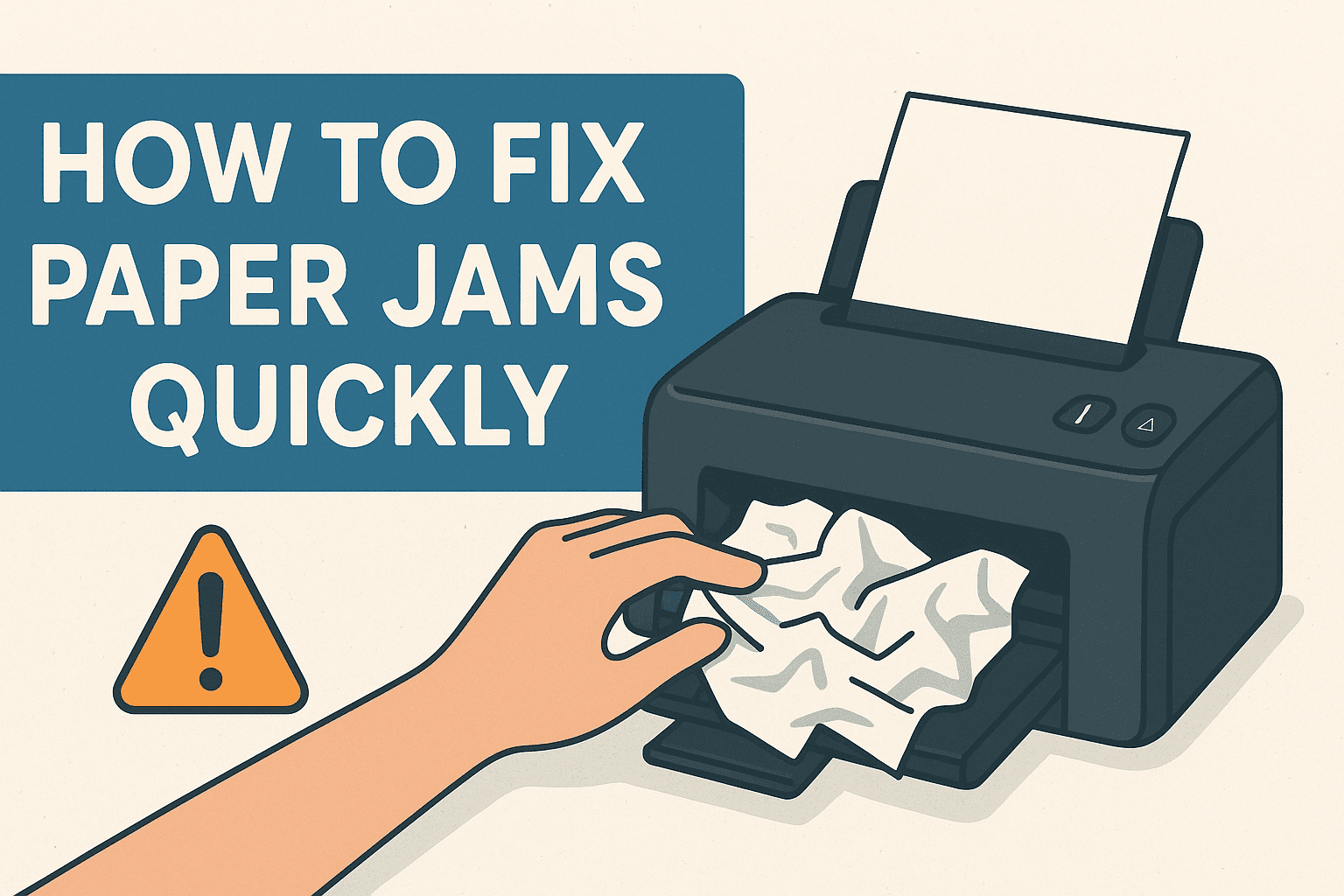
2. Error Code E2 — Paper Jam Detected
The printer displays E2 when paper is stuck inside the rollers or paper path. Even small torn pieces can trigger this alert. Fix: Turn off the printer, open all access doors, gently remove jammed sheets, and check for small scraps of paper. After clearing the path, restart the device.
3. Error Code E3 — Cartridge Not Recognized
This error indicates an issue with the ink or toner cartridge connection. It may appear after installing a new cartridge or if the cartridge is not seated properly. Fix: Remove the cartridge, clean the metal contacts with a dry cloth, reinstall it securely, and restart the printer.
4. Error Code E4 — Cover Open or Not Latched
Printers have safety sensors to ensure that access panels are closed. If any cover is open, the printer shows E4 and stops printing. Fix: Check the front, top, and rear doors. Close each one properly until you hear a click. Avoid forcing the cover as it may damage the hinges.
5. Error Code E5 — Ink System Failure
This code refers to a temporary malfunction in the ink system. It can also appear if the cartridge has reached its end of life. How to fix: Restart the printer, reinstall the cartridge, and check for firmware updates. If the issue persists, the cartridge may need replacement.
6. Error Code E6 — Scanner System Error
On all-in-one printers, E6 is related to the scanner module. Dust buildup or stuck components may cause the sensor to malfunction. Fix: Turn off the device, open the scanner lid, gently clean the glass surface, and check for any obstruction. Restart to clear the code.
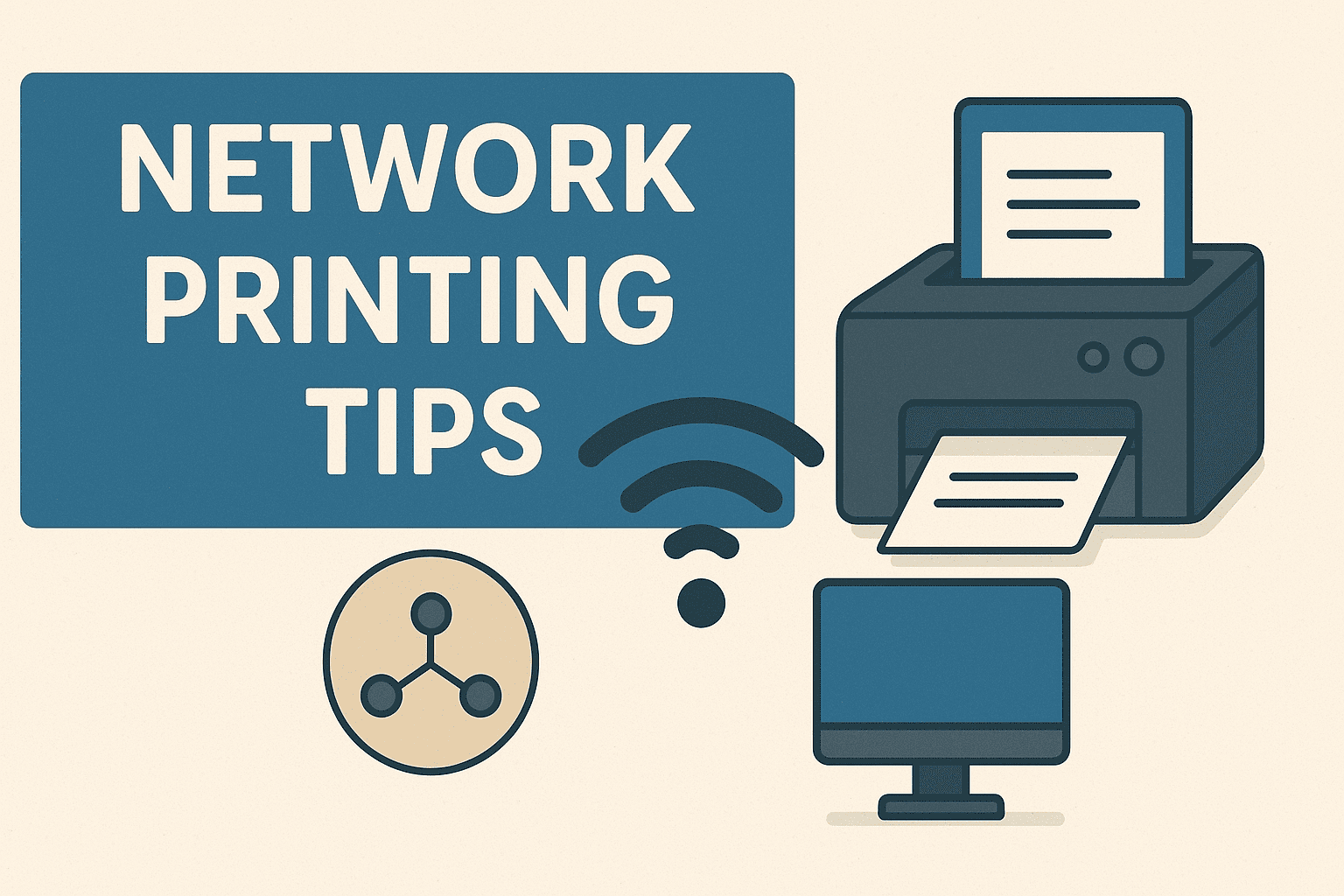
7. Error Code E7 — Network or Wi-Fi Problem
This code appears when the printer cannot connect to the wireless network. It may be due to weak signal strength, incorrect Wi-Fi password, or router issues. Fix: Reconnect to your Wi-Fi, move the printer closer to the router, and restart your network devices if needed.
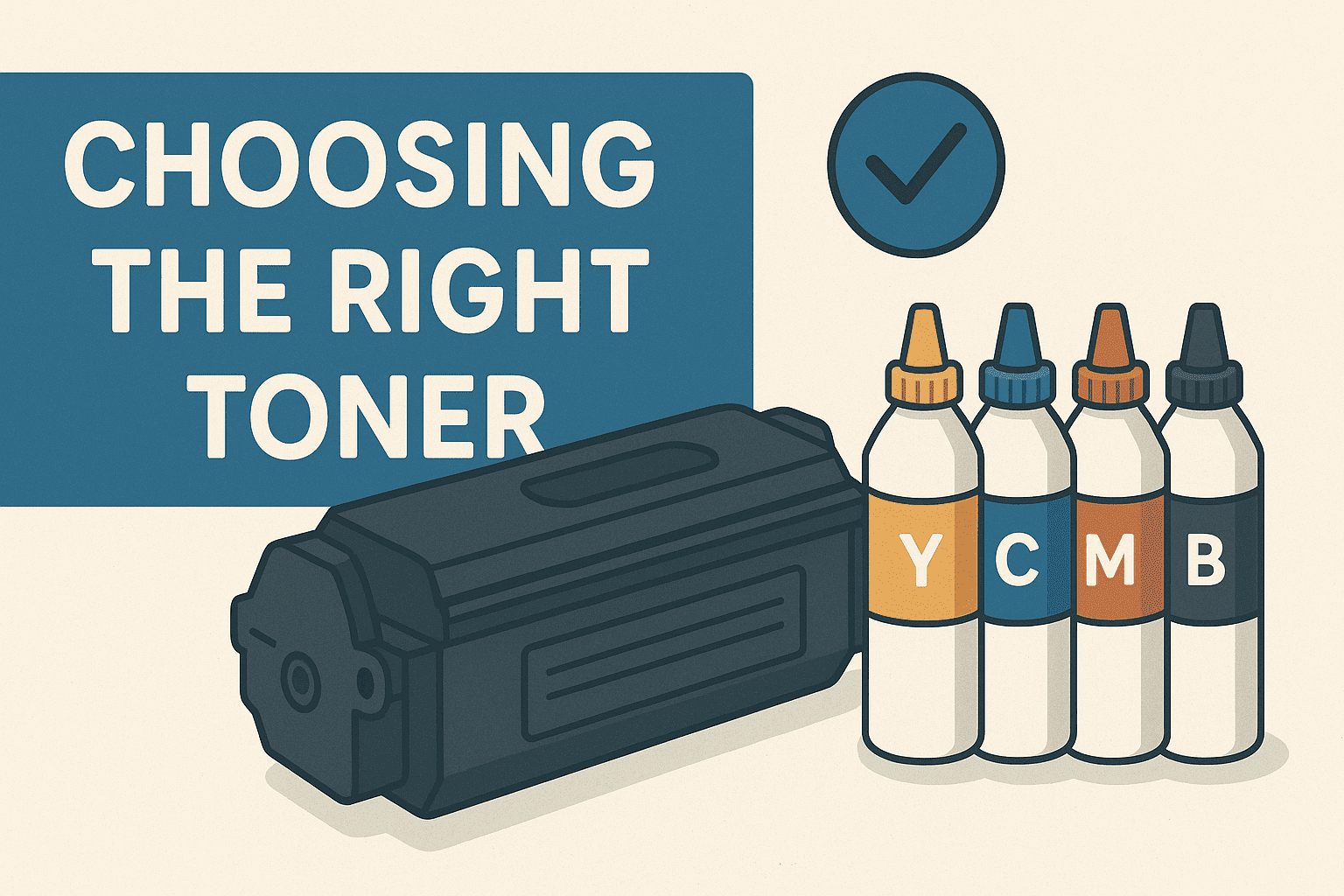
8. Error Code E8 — Low or Empty Toner
This code simply indicates that your toner level is low or the cartridge is empty. Fix: Replace the toner cartridge with one that matches your printer model. Shake the cartridge gently before installation to distribute toner evenly.
9. Error Code E9 — Internal Hardware Fault
E9 usually signals a hardware-related issue such as a sensor malfunction or mechanical blockage. Fix: Restart the printer first. If the error continues, inspect for loose components or contact professional support for a detailed check.
How to Avoid Frequent Printer Errors
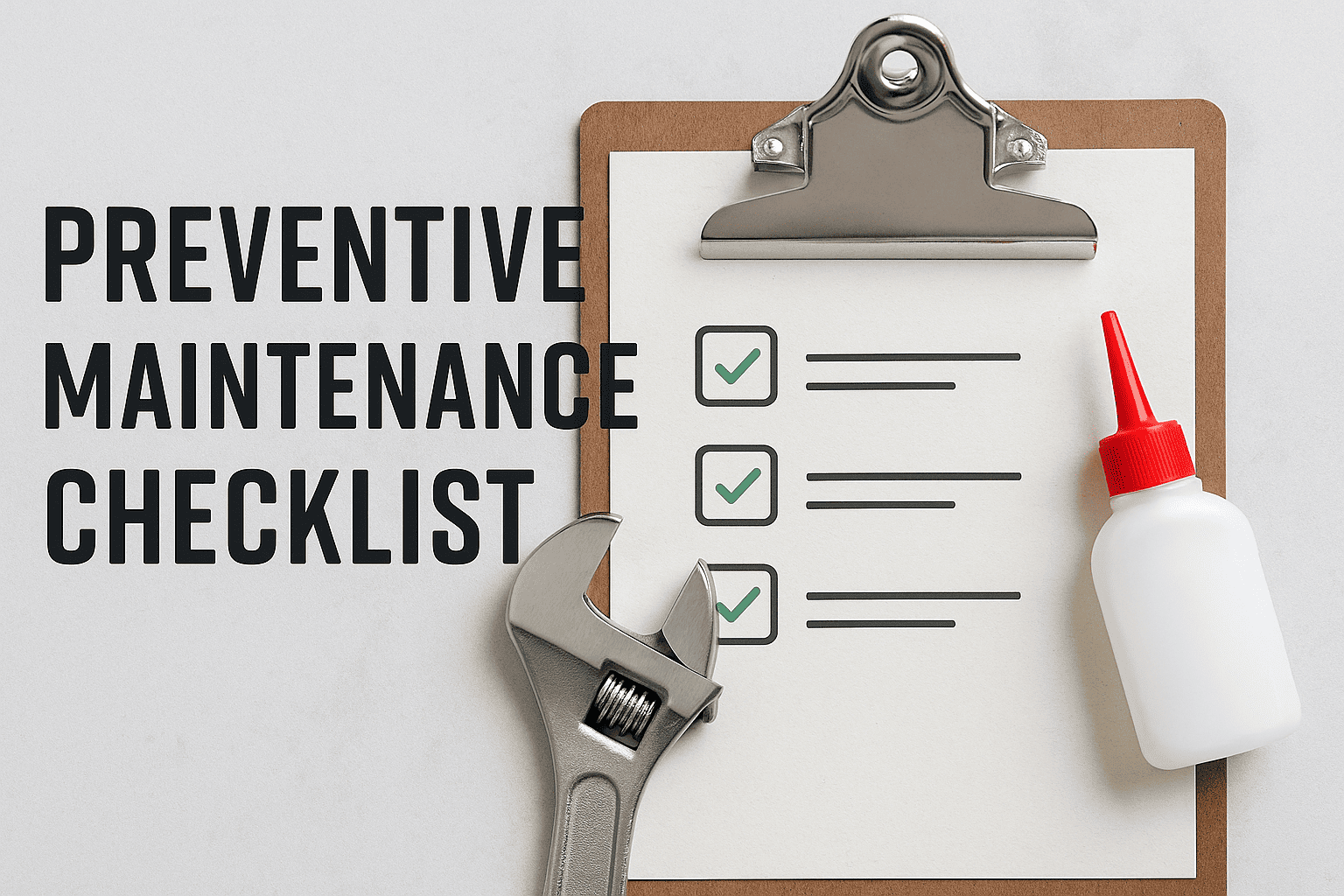
Regular maintenance and good printing habits can significantly reduce error codes. Always use the correct paper type, keep your printer clean, update firmware regularly, and ensure proper cartridge installation. Avoid overloading trays and maintain a stable power supply to prolong your printer’s life.
Final Thoughts
Printer error codes may look complicated, but they often point to simple and fixable issues. By understanding their meanings and following the recommended steps, you can resolve most problems at home or in the office. If any error keeps reappearing, a professional technician can inspect the printer thoroughly. With proper care, regular cleaning, and correct supplies, you can maintain smooth and consistent printing for a long time.